Introduction
Welcome to Conduish.
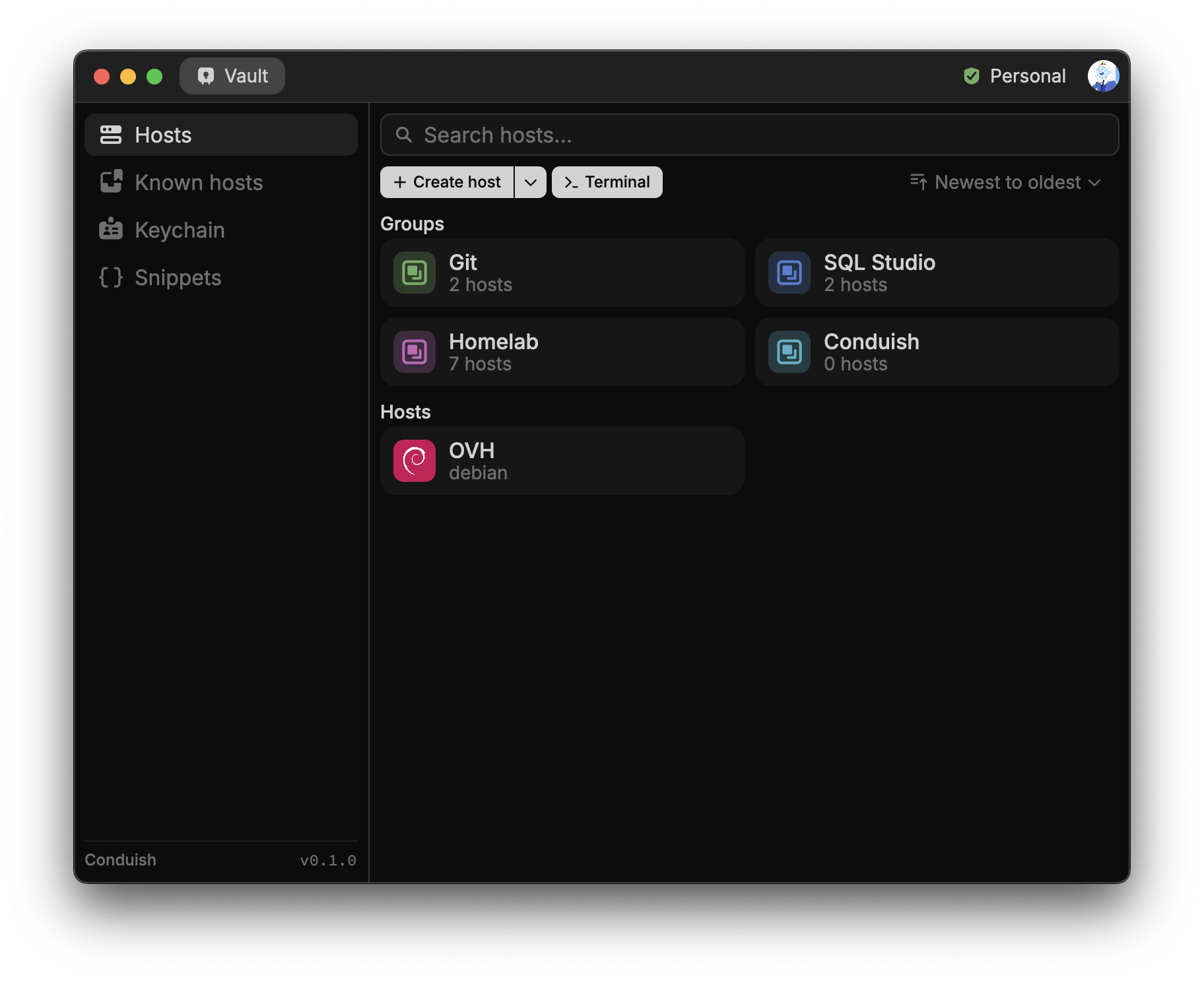
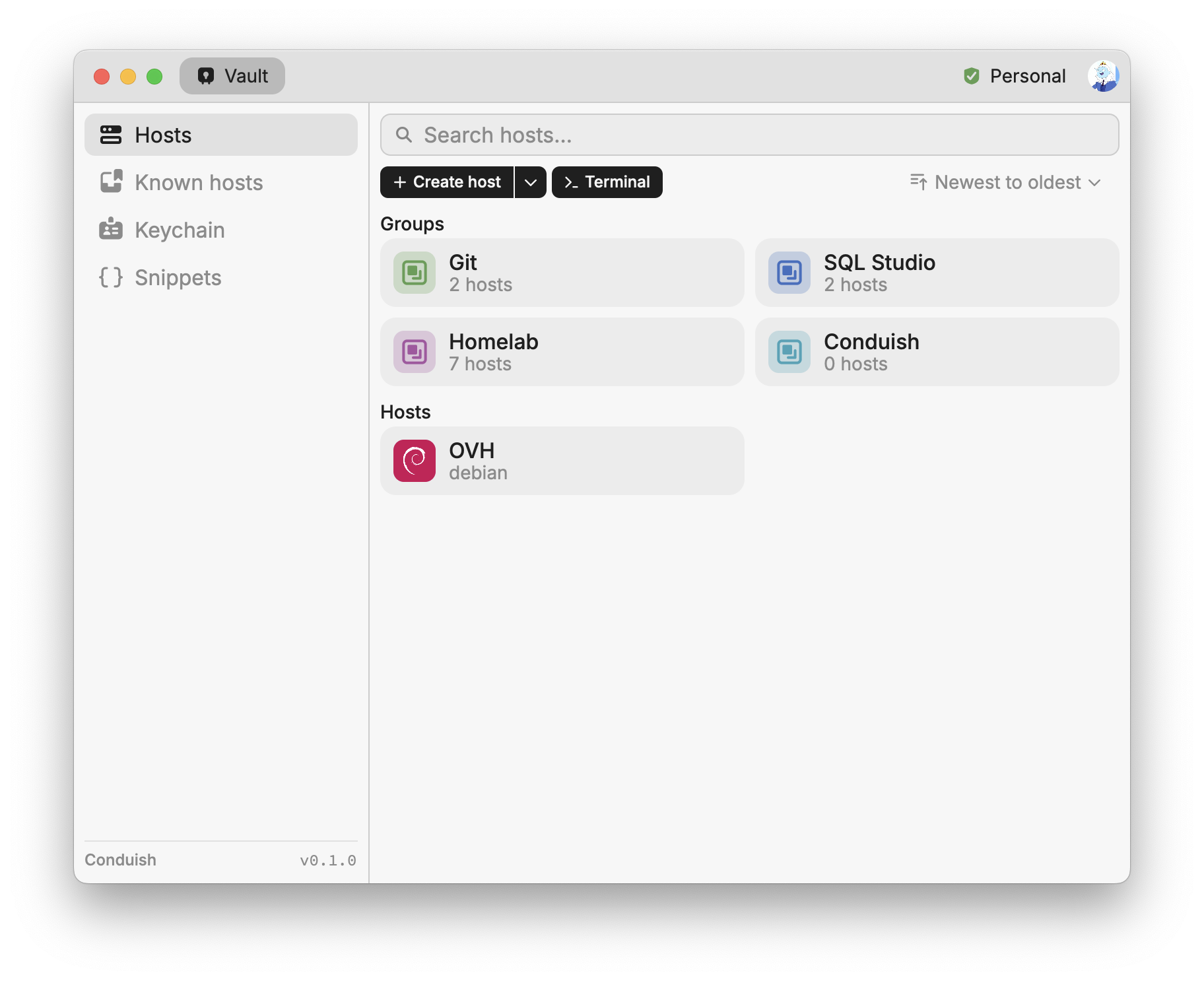
Conduish is a better way to work over SSH. It brings your hosts, keys, vaults, and terminal workflow into one app so you can move between machines without rebuilding your setup every time.
This docs site is organized as short, practical guides. Start with the basics below, then go deeper into the features you care about.
Quick start
1. Set up Conduish
Install the app, sign in, and open your workspace.
If you need the platform-specific steps, start with Installation.
If you already use multiple devices, Conduish is built to keep your SSH setup consistent across them.
2. Add your SSH environment
Bring in the parts of your workflow that matter:
- saved hosts
- SSH keys
- vault-backed configuration
- terminal workflows you want to keep using
3. Turn on terminal autocomplete
Open Settings > Terminal and enable Terminal autocomplete.
SSH autocomplete has extra requirements
SSH autocomplete depends on the Conduish companion and on the shell running on the remote host. Support is narrower there than it is in local terminal sessions.
4. Learn the SSH-specific behavior
If you plan to use autocomplete over SSH, read the companion and troubleshooting pages next so you know what is required and what current limits exist.
What Conduish helps with
- Keep hosts, keys, and setup in one place.
- Stay consistent across devices with sync.
- Manage SSH keys without extra tooling.
- Use terminal autocomplete where the current shell and session support it.
- Keep working even when you need an app built around SSH instead of a generic terminal.
Notes
If something does not behave the way you expect, start with the docs above before assuming the session itself is broken.